Updated
Brilliant Directories builds a lot of pages for you: a profile for every member, plus category, location and category-in-city pages generated from its search results. Google decides which of those pages to index and show. This guide covers how a Brilliant Directories site looks to Google, how to connect Search Console and Google Analytics, and how to see searches, indexing and contacts for each page type and each member.
How a Brilliant Directories site is laid out for Google
Brilliant Directories documents a default URL pattern for each kind of page. Your site may use a different order if you changed the URL settings, so treat these as a starting point and compare them with the URLs in your own Search Console.
| Page | Default pattern | Example |
|---|---|---|
| Member profile | country / city / top category / member | /united-states/austin/arts/rubys-clay-studio |
| Category + city | country / state / city / category, or state / city / category | /united-states/nevada/las-vegas/restaurants |
| Category | category | /food |
| Location | country, state or city | /united-states |
| Search results | parameters | /search_results?sid=17&location_value=... |
| Blog post | post type / post title | /blog/... |
| Review and contact forms | fixed paths | /writeareview, /connect |
Sources: Brilliant Directories support articles on member profile URLs, search results pages and post URLs.
Two things about this layout matter for SEO:
- Category and location pages are search results pages. Brilliant Directories documents a readable URL and a parameter URL for the same results, so Google can find both. If the parameter versions earn impressions, Google is splitting attention between two copies of one page.
- Member profiles and category-in-city pages can have the same number of URL segments.
/united-states/austin/arts/rubys-clay-studioand/united-states/nevada/las-vegas/restaurantsboth have four. A tool that only counts segments lumps them together, and then the numbers for both are wrong. The fix is in the page type rules below.
Connect Search Console and Google Analytics
- Google Analytics 4. In your Brilliant Directories admin, go to Settings » General Settings » Integrations and paste your GA4 measurement ID into the Google Analytics 4 field (BD guide). Google Tag Manager is a separate option there if you already use it.
- Search Console. Verify the domain with the HTML tag or a DNS record, both listed in Brilliant Directories’ Search Console guide. A Domain property (DNS) covers www, non-www, http and https in one go, which avoids missing data later.
- Sitemap. The sitemap comes from the Google Sitemap Generator add-on; Toolbox » Sitemap Generator shows its address (BD guide). It splits URLs into one file per page type and leaves out noindexed pages and locations with no members. Submit it in Search Console.
- DirectoryLens. Sign in with Google, pick the property, and link the GA4 property if you have one. DirectoryLens imports the 16 months of data Google keeps, then syncs every day. Access is read-only.
Set up page types for a Brilliant Directories site
A page type is a rule that matches URLs: every member profile, every category-in-city page, and so on. Every DirectoryLens report is split by page type, so the rules decide whether the numbers mean anything. Click Propose from URLs in the site settings and DirectoryLens groups your known URLs by shape. It spots US state names, pagination and parameter URLs, and it guesses that the largest one-word-plus-slug group is the listing page. Review the proposal before saving.
On a Brilliant Directories site the usual edit is separating member profiles from category-in-city pages. Both rules list your category slugs, but in different positions:
Category + city   ^/united-states/(?<state>[^/]+)/(?<city>[^/]+)/(?<category>restaurants|plumbers|dentists)/?$
Member profile    ^/united-states/(?<city>[^/]+)/(?<category>restaurants|plumbers|dentists)/[^/]+/?$
Parameter URLs    \?
Replace the category list with yours. The named groups (state, city, category) feed the category × city reports. Before you save, the preview shows how many URLs each rule catches, with samples. Saving re-sorts every URL and rebuilds the reports in the background.
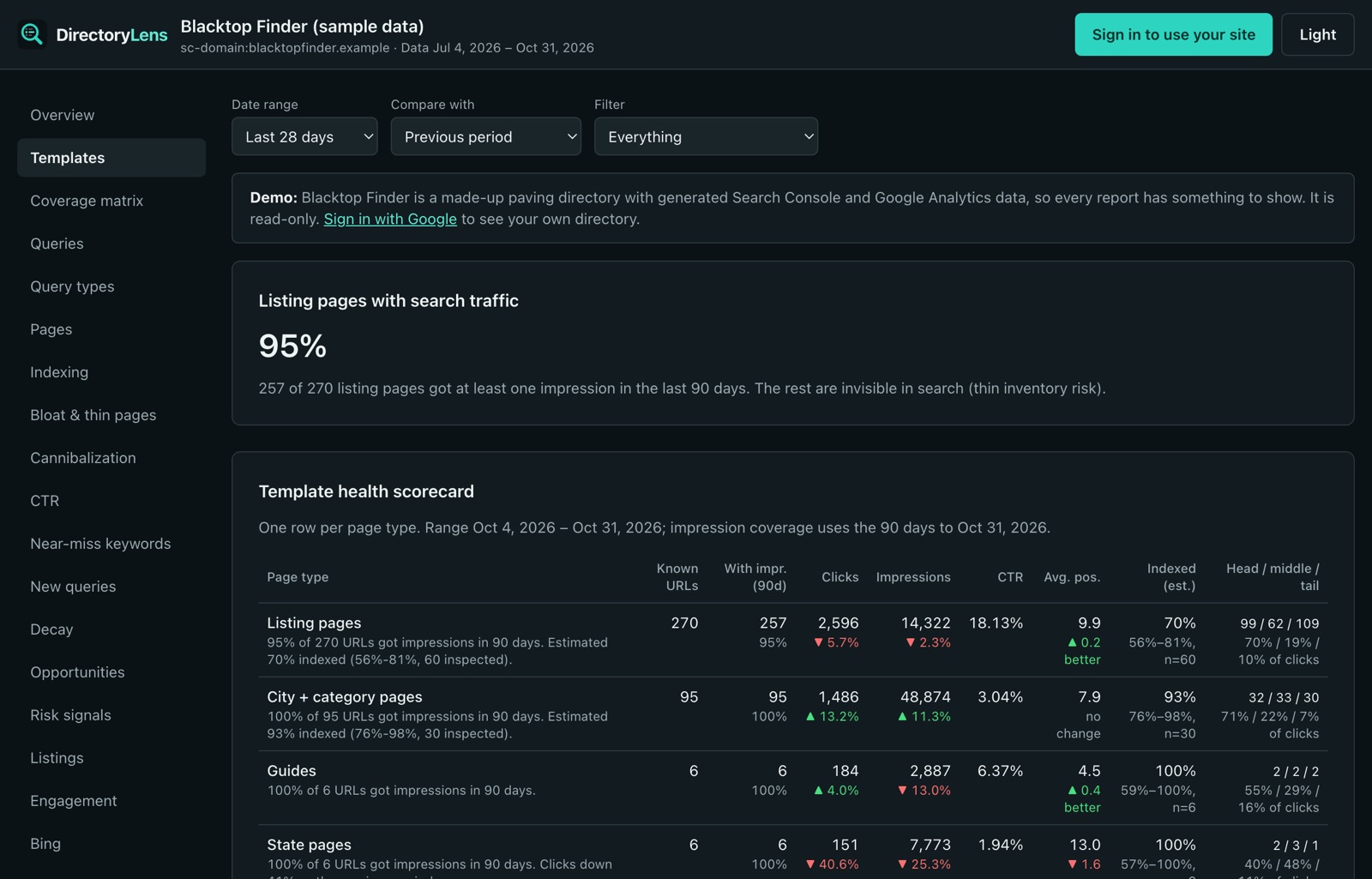
What to watch on a Brilliant Directories site
Parameter copies of your search pages
Give parameter URLs their own page type, as in the rules above. If that row shows impressions, Google is ranking /search_results?... copies alongside the readable pages. Brilliant Directories’ own SEO article warns that filtered search URLs and near-identical location pages compete with each other.
Empty or thin category-in-city pages
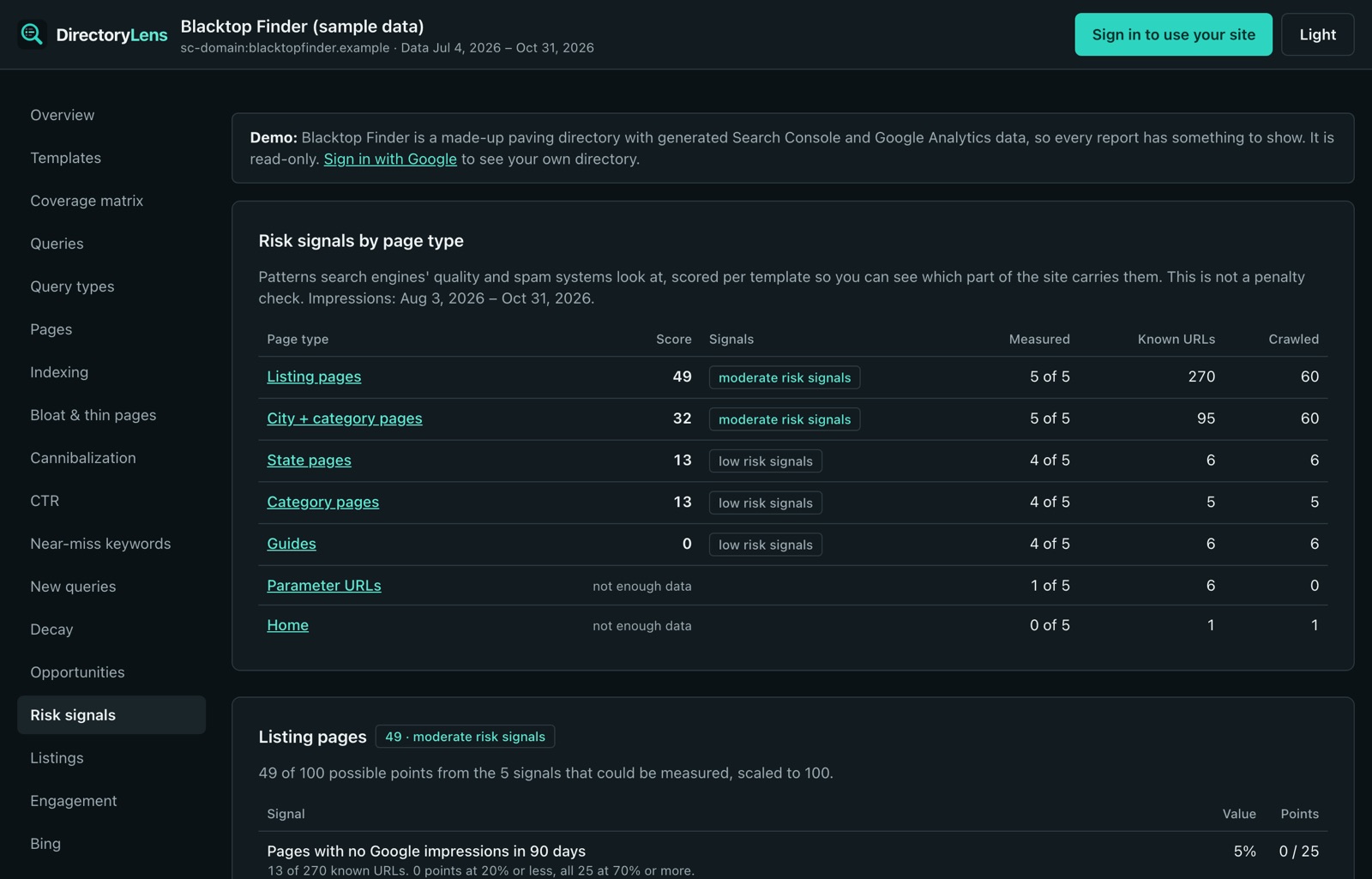
Every category and city combination can produce a page, including ones with one member or none. The quality signals report flags, per page type, URLs with no impressions in 90 days, thin pages, near-duplicate text and titles that all follow one pattern. A category-in-city page type with most of its URLs never shown is the place to prune or noindex.
Member profiles Google has not indexed
Search Console’s Pages report gives totals for the whole site. DirectoryLens runs Google’s URL Inspection API across your member profiles, up to 1,800 URLs a day, and reports the indexed share per page type, with every “crawled, currently not indexed” and “discovered, currently not indexed” URL listed. That is the list to fix before you sell another upgrade on visibility.
Cities where people search and you have few members
The coverage matrix and listing gaps reports take your Search Console searches for “category in city”, then show where demand exists and the directory has no page or few listings. On a membership directory that is a recruiting list: the cities to sell into next.
Member stats: Brilliant Directories add-on vs DirectoryLens
Brilliant Directories has a Member Profile Analytics add-on that counts profile views, website, phone and social clicks, and contact form submissions, turned on per membership plan (BD guide). It counts what happens on your site. It does not show how members are found on Google, and it has no export.
| BD Member Profile Analytics | DirectoryLens listing reports | |
|---|---|---|
| Profile views and contact clicks | Yes, counted by Brilliant Directories | Yes, from your GA4 (phone, email and directions need the snippet) |
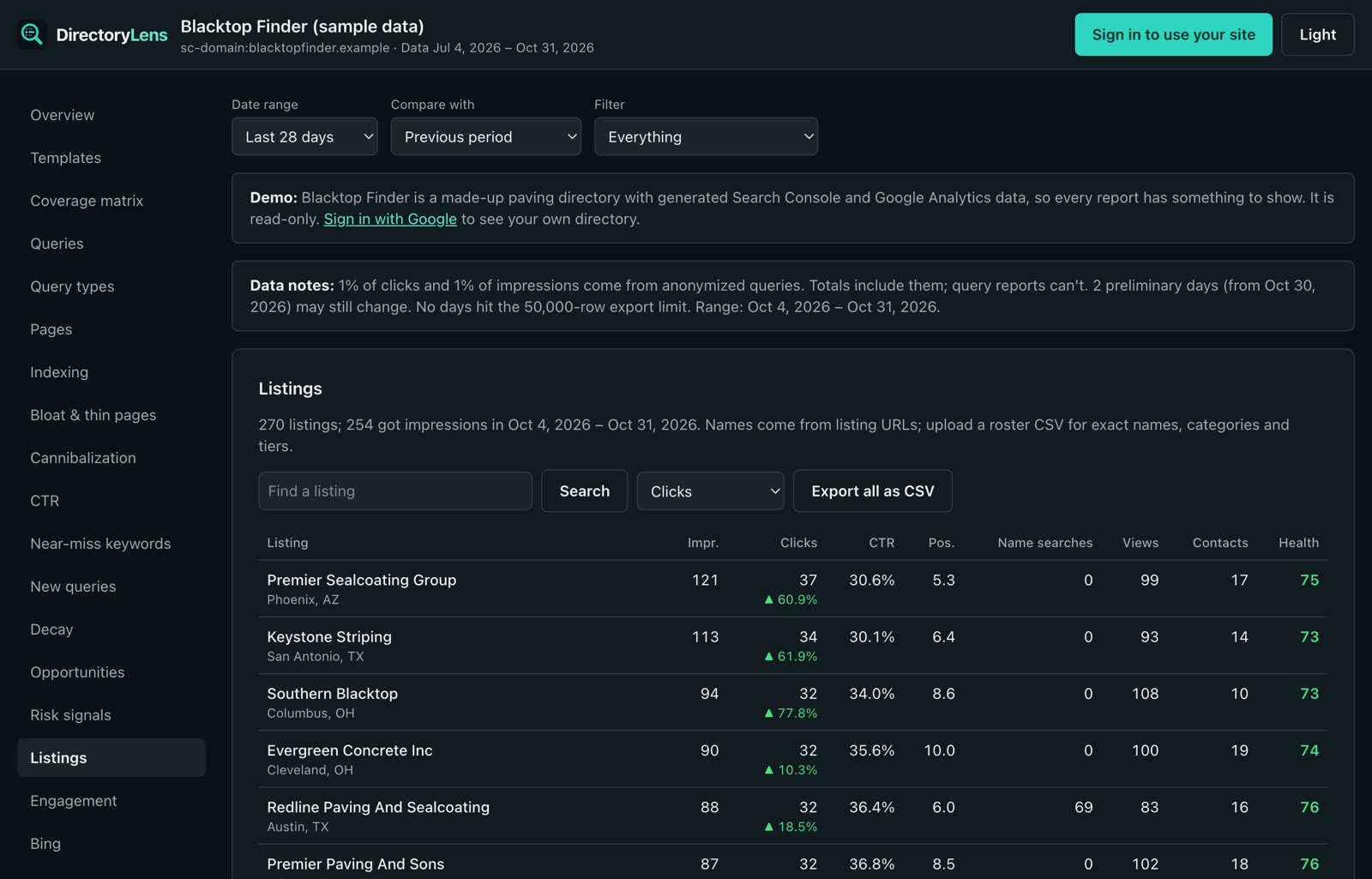
| Google searches that show the member | No | Yes: searches, times shown, clicks and position, plus searches for the business name |
| Share with the member | In their member dashboard | Expiring share links, PDFs with your branding, and an optional monthly email to each member |
| Bulk outreach | No | Stat packs: share links for up to 500 listings at once, as a CSV |
They work fine side by side. Members who see the searches they are found for are easier to upgrade, and you can show the same numbers to the ones who have not joined yet.
Track phone, email and directions clicks
Google Analytics on its own counts clicks to other websites and form submissions. To count phone, email, directions and messaging clicks on member profiles, add the DirectoryLens snippet after your GA4 tag:
<script async src="https://directorylens.com/snippet.js"></script>It sends GA4 events through your own Google tag; nothing goes to DirectoryLens. If GA4 runs through Google Tag Manager rather than the Google tag, the events arrive in the dataLayer, and you need a GA4 event tag in Tag Manager to forward them.